Meshtastic
Meshtastic channels, encryption and messaging: the comms basics
Set up public chat, a private group and direct messages with two Meshtastic nodes. Understand keys, QR sharing, admin access, hops, roles and location privacy.
OUR PICKS / YOUR SETUP
Find your fit.
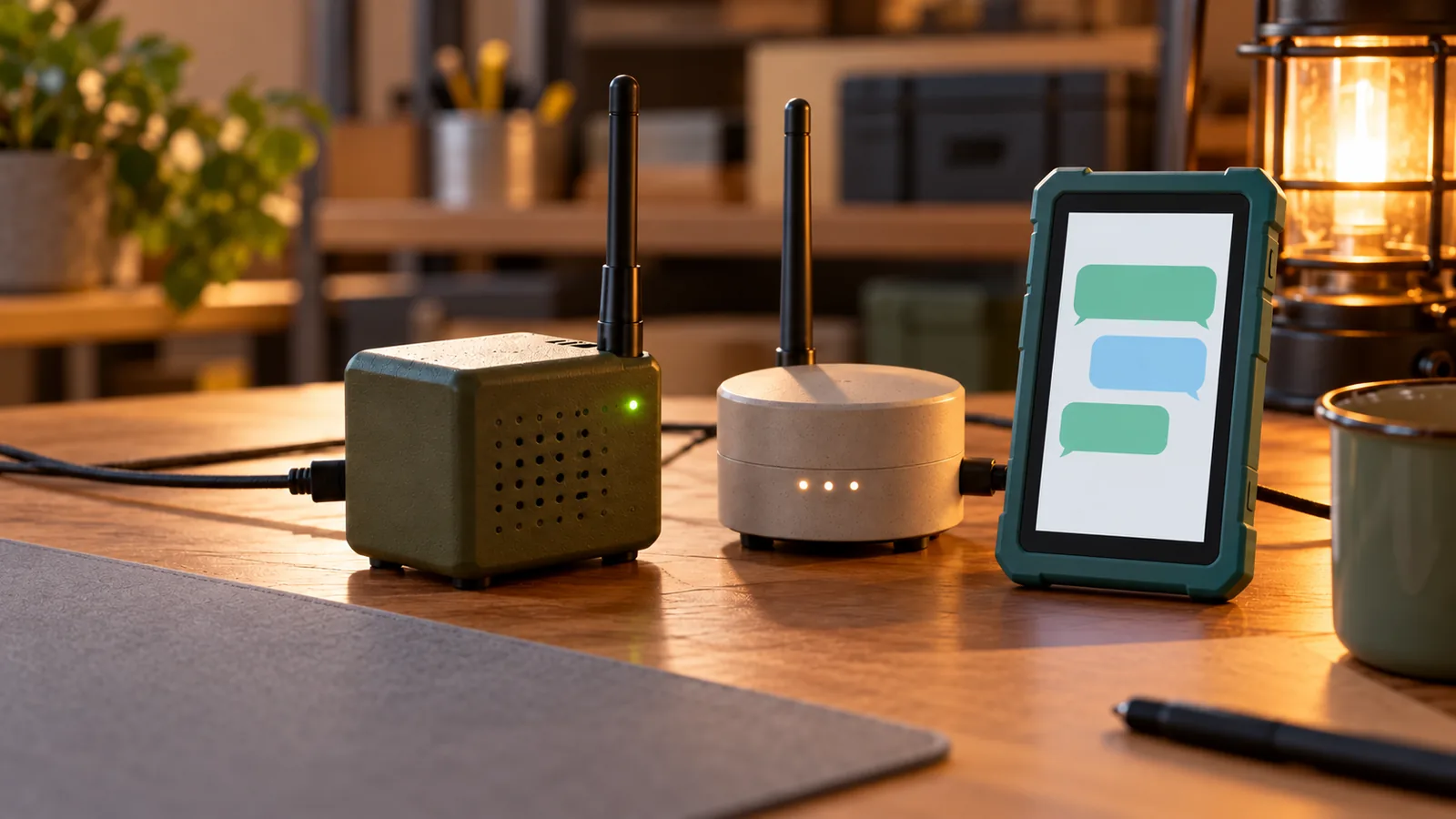
Practise with two starter nodes: keep the default primary channel, create a private secondary group with a generated PSK, then try a direct message. Start in CLIENT with Max Hops 3 and location sharing off.
- Practice kitTwo starter nodes
- Private groupGenerated PSK
- Start hereCLIENT / 3 hops
Two radios, one short message, and no mobile signal required for the radio link: that is the fun part. The next win is knowing who can read what you send—and keeping the mesh pleasant for everyone else.
Research guide: behaviour and setup details come from the Meshtastic documentation, checked October 28, 2026.
Start with CLIENT, keep the default public channel, and add a private secondary group with a generated key. Use direct messages for one-to-one chat, and leave location sharing off while you learn. Our Meshtastic hub connects the hardware and build guides.
Get a pair of nodes to practise with
Choose two of one starter pick. You can see a message arrive at the other end, swap settings deliberately and ask for a reply instead of guessing what happened.
We earn a commission if you buy through our links — it doesn’t change our picks. How we make money → As an Amazon Associate I earn from qualifying purchases.
- Pocket pair: two Seeed SenseCAP T1000-E nodes. A tidy starting point with a built-in battery. The Meshtastic hardware page covers its radio and setup details.
- Screen alternative: two LILYGO T-Echo 915 MHz nodes. Choose these if you want an e-ink display on the node. Meshtastic lists the T-Echo with a case and battery.
Those are alternative pairs, not a four-radio shopping list. Use matching hardware and the permitted region setting; the linked T-Echo is the 915 MHz version for US readers. Follow our starter-node guide for the hardware comparison and first setup, then return here for the conversation controls.
Primary, secondary and direct: three different jobs
A messaging channel is a group of people with matching settings. It shares the radio’s LoRa modem configuration with your other messaging channels. Creating another group does not create another radio frequency or a fresh pool of airtime.
| Choice | What it does | Use it for |
|---|---|---|
| Primary channel, index 0 | Handles the node’s default traffic | Keep the default public setup while learning |
| Secondary channel | Adds another message group with its own name and key | A private group such as our fictional Hiking Crew |
| Direct message | Addresses a particular node using the current public-key messaging system | A one-to-one conversation |
There is a useful trap to avoid: renaming the primary channel can move the radio’s frequency slot when that slot is automatic. Add your private group as a secondary channel instead. Both radios still need matching modem and frequency settings, plus the group’s matching name and key. The channel configuration docs explain the distinction.
Treat the default channel as public
The default public channel is encrypted with a widely known, published key. Treat its messages as public conversation. A lock symbol or the word “encrypted” does not turn that shared default into a secret.
For Hiking Crew, use the app’s generated pre-shared key, or PSK. Everyone holding that key can read the group. Give it only to the people you want in the conversation; a creative channel name alone changes nothing about access. Meshtastic’s encryption overview covers the default key and private groups.
Add the private group on Android
With the app connected to your radio:
- Open Settings → Channels under Configuration.
- Tap + to add a channel, keeping the existing primary channel.
- Name the new group Hiking Crew. Naming a new channel generates a fresh 256-bit key; the refresh control beside PSK generates another.
- Keep MQTT uplink and downlink off for this radio-only exercise, and turn location sharing off.
- Tap Save to close the editor.
- Tap Send at the bottom of the channel list to write the changes to the radio.
- Share the group’s configuration with the second node, then send a short group message and reply.
Save, then Send is the important rhythm. Until you tap Send, the edit is only on the phone. Follow the current Android channel instructions if you revisit the settings later.
Share the QR code like a shared password
On Apple clients, Settings → Share QR Code lets you choose which configured channels to include. The link carries those channel settings and the LoRa configuration needed to join. Review the selection before handing it over.
Send the private QR or URL directly to your intended group. Keep it out of public screenshots, posts and shared photo albums. If it escapes or someone leaves the group, generate a replacement PSK and share the new configuration with the remaining members.
When importing, Add Channels appends channels where space and names allow; Replace Channels overwrites the current set. Read that choice before tapping through. The Apple messages and sharing guide shows the import flow.
Key rotation protects future group traffic under the new key. Keep old keys secure too: Meshtastic has no forward secrecy, so a leaked key can unlock recorded channel traffic. Put the group link somewhere you would keep a shared password.
Direct messages use node key pairs
Current Meshtastic DMs use public-key cryptography. Each node has a public/private key pair. The radios derive a shared key for the conversation; the private key stays on its node.
Public keys arrive through NodeInfo. If the recipient’s key is missing, let the nodes exchange that information; the normal current configuration refuses the encrypted send rather than silently using the group key. Before sensitive chat, compare the recipient’s public key with them in person or through another trusted route. A familiar display name is easy to copy.
The Android messaging docs explain missing-key errors and key-status icons. In your practice session, open the other node’s conversation, send a DM and ask for a reply. That teaches more than repeatedly pressing Send while a key is still missing.
Encryption hides the conversation, not the radio traffic
| Information | How to think about it |
|---|---|
| Private group text | Readable by everyone with that group’s PSK |
| Current encrypted DM text | Protected with the two nodes’ derived key |
| Sender/destination IDs and hop/routing fields | Visible in the unencrypted packet header |
| Position reports | Controlled by your channel-sharing and precision settings |
Relays need the header to move a packet, including one whose text they cannot decrypt. Encryption gives you message confidentiality, not anonymity. The packet-format documentation separates headers from payloads.
Group encryption and DM encryption also differ. The normal channel mode uses AES-CTR; DMs use AES-256-CCM. On firmware 2.8.1 and later, optional Use AEAD adds authenticated channel encryption with AES-CCM. It is experimental and off by default, and every member must enable it to exchange messages on that channel. Coordinate that change instead of flipping it on one radio. The channel docs cover the setting.
Admin keys are permission to change a node
For current remote administration, put the controlling node’s public key into an Admin Key field on the target node. The target can authorize up to three controlling public keys. Your private chat PSK and your node’s private key do not belong in that field.
The older admin channel is a separate, legacy shared-key route. Leave that option off for a new setup and use the public-key method in the remote-administration guide. Managed Mode is optional; remote admin works without enabling it.
Before an erase-and-reinstall, back up the node’s keys securely so you can restore its identity. Configuration exports can contain private keys: keep those backups out of public repositories and screenshots. The security configuration docs cover backup and restore.
Pick CLIENT and keep the hops sensible
CLIENT is the starting role. It supports messaging and already rebroadcasts packets when needed. You can help a mesh without selecting ROUTER.
| Device role | Sensible use |
|---|---|
| CLIENT | General messaging and normal relaying |
| CLIENT_MUTE | Send and receive without forwarding other nodes’ packets |
| CLIENT_BASE | A better-positioned base that prioritizes traffic for its favorited nodes |
| ROUTER | Planned infrastructure, coordinated with the people maintaining that mesh |
The project recommends CLIENT, CLIENT_MUTE or CLIENT_BASE for most users. Unnecessary infrastructure roles increase collisions and consume hops; ROUTER is no range-upgrade button. The older REPEATER role is deprecated, as noted in the device-role documentation.
Leave Max Hops at 3, the documented default and recommendation. Increase it only to solve a demonstrated path problem. Height and a clear path deserve attention before extra rebroadcasts; use our antennas and range guide for that job.
Choose your location sharing deliberately
For the first exercise, turn location sharing off on your channels. Position precision 0 means no location is sent on that channel; full precision uses 32. Lower precision reduces detail when you do want to share.
A GPS switch alone is insufficient: position can come from the radio, the paired phone or a saved fixed position. Review the channel settings as well as the position configuration.
Want private group positions later? On firmware 2.7.1 and newer, disable primary-channel sharing and enable it on the intended private secondary channel. Only the lowest-indexed enabled secondary gets automatic updates; other enabled secondary channels can still support manual requests. The configuration tips explain that selection.
Be the node people enjoy hearing
Keep public messages short, allow replies time to arrive, and run traceroute occasionally rather than in a loop. Leave extra telemetry and internet bridging off until you have a reason to use them. Private groups still share radio airtime with the surrounding mesh; the routing documentation describes busy-channel waiting and retransmissions.
Your practice session can stay small: a public hello, a private Hiking Crew exchange, then a DM and reply. Check the other node’s received messages after each step. Once that feels familiar, our solar relay build takes the hardware outdoors. Keep the radio manners you learned with the pair.
Taking messages to a dashboard? Bridge Meshtastic to a local Home Assistant MQTT broker so private channel data stays out of public broker feeds.
Sources & methodology
Where these facts come from.
- Meshtastic: primary/secondary channels, keys and precision · checked October 28, 2026
- Meshtastic: channel encryption, DMs and security boundaries · checked October 28, 2026
- Meshtastic: admin keys and secure backups · checked October 28, 2026
- Meshtastic: device roles and deprecated REPEATER · checked October 28, 2026
- Meshtastic: role, hop and position-sharing recommendations · checked October 28, 2026
- Meshtastic: radio settings and Max Hops · checked October 28, 2026
- Meshtastic: GPS, phone and fixed-position sources · checked October 28, 2026
- Meshtastic Android: channel setup, Save/Send and DMs · checked October 28, 2026
- Meshtastic Apple: selected-channel QR sharing and import · checked October 28, 2026
- Meshtastic: SenseCAP T1000-E hardware · checked October 28, 2026
- Meshtastic: LILYGO T-Echo hardware · checked October 28, 2026
- Meshtastic: current remote-administration setup · checked October 28, 2026
- Meshtastic: clear packet headers, routing and shared airtime · checked October 28, 2026
Source dates are listed above.
As an Amazon Associate I earn from qualifying purchases.
Parts from this article
The gear, on Amazon
The models recommended above, with the specifications that matter for your choice.
Pocket tracker
Seeed SenseCAP T1000-E
Carry a cased GPS node with a built-in battery and use your phone for messages.
Pocket screen alternative
LILYGO T-Echo, 915 MHz
Choose a cased nRF52 pocket node with an e-ink screen, GPS and an SX1262 radio.
Prepared by Racks & Watts.