Homelab desk
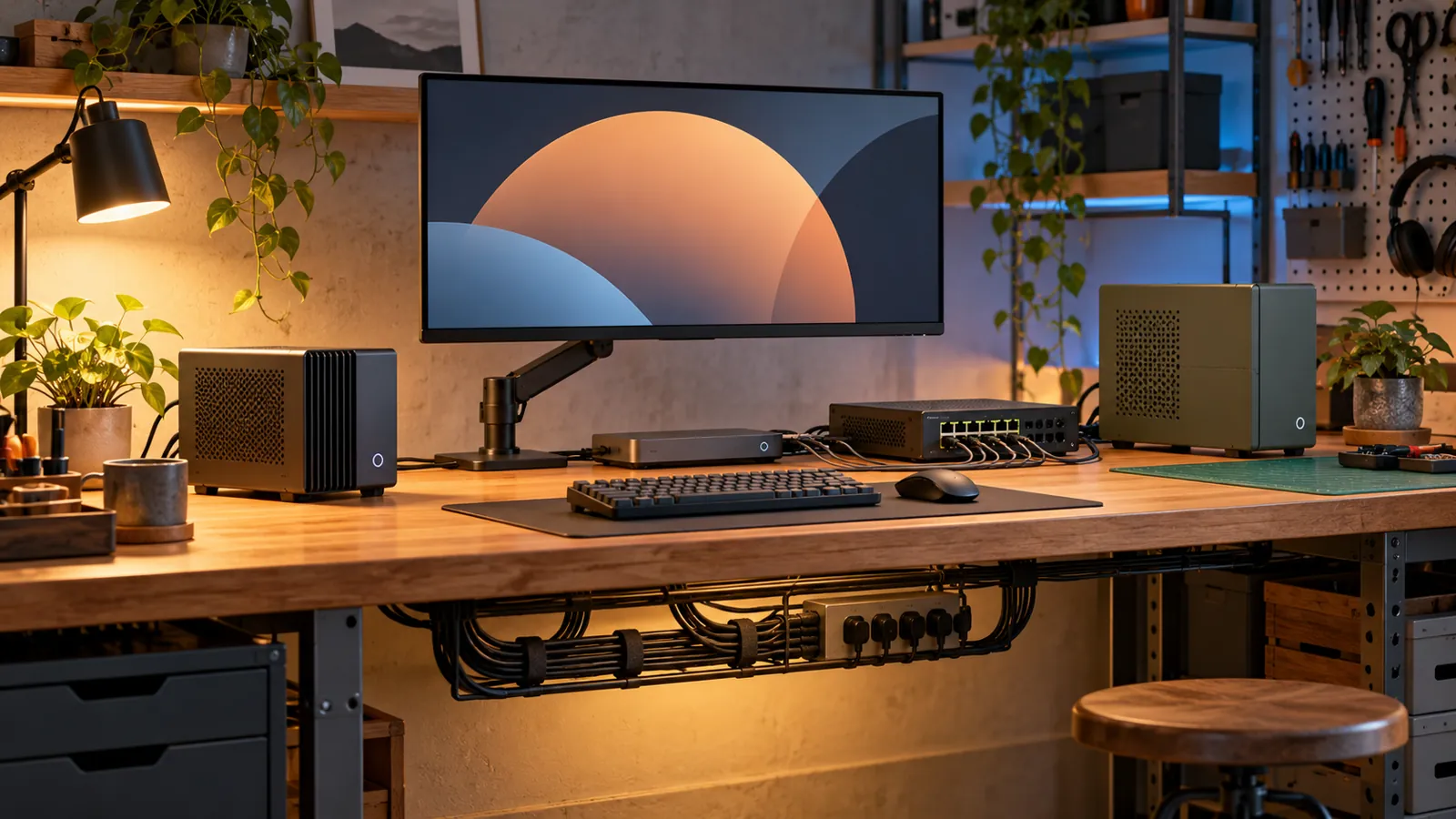
Homelab desk setup: monitor arm, KVM switch, USB-C dock and desk power
Build a tidy two-machine homelab desk with seven picks for monitor mounting, DisplayPort switching, laptop docking, desk power and cable management.
OUR PICKS / YOUR SETUP
Find your fit.
Choose Ergotron LX for the screen, StarTech SV231DPDDUA2 for two-machine DisplayPort switching, and Plugable TBT4-UDZ for a supported laptop. Add Kasa HS300 accessory power, StarTech UDCMTRAY and reusable ties; ASUS PA278QV is the QHD display pick.
- Switch2 hosts · DP 1.2
- Dock100W · 98W certified
- Display27-inch · QHD
We earn a commission if you buy through our links — it doesn’t change our picks. How we make money → As an Amazon Associate I earn from qualifying purchases.
YOUR NEXT PROJECT / THE GEAR
Parts list
- Ergotron LX monitor arm, 45-241-224 matte blackCheck price on Amazon
Lift a compatible monitor off the desk and leave room for the next small project.
- StarTech SV231DPDDUA2 dual-DisplayPort KVMCheck price on Amazon
Share two DisplayPort screens, a wired keyboard and mouse between two computers.
- Plugable TBT4-UDZ Thunderbolt 4 dockCheck price on Amazon
Bring displays, Ethernet and USB peripherals to one compatible laptop connection.
- Kasa Smart Wi-Fi Power Strip HS300Check price on Amazon
Switch six outlets separately and read each one's power in Home Assistant.
- StarTech UDCMTRAY under-desk cable trayCheck price on Amazon
Move adapters and loose cables off the floor into an accessible steel tray.
- VELCRO ONE-WRAP cable ties, black 100-packCheck price on Amazon
Bundle cables with reusable ties so swapping a board does not mean cutting everything apart.
- ASUS ProArt PA278QV 27-inch monitorCheck price on Amazon
Give terminals and dashboards a QHD screen with DisplayPort and an adjustable stand.
Your lab desk should make it easy to swap machines, read a console and find the cable you need. If every experiment starts with crawling under the table, the desk needs an upgrade before the server does.
Choose an Ergotron LX to clear the desktop, StarTech’s SV231DPDDUA2 to share DisplayPort screens between two machines, and Plugable’s TBT4-UDZ as the laptop landing spot. Add the Kasa HS300 for separately switched accessories, a steel tray and reusable ties for the cable pile. The ASUS PA278QV is the QHD display pick if you need a screen too.
Specifications from the makers, checked October 31, 2026.
For the soundtrack, choose USB or analogue desk speakers around the audio output on your dock or computer.
Seven picks, seven useful jobs
| Job | Pick | Maker specifications that matter | Fit |
|---|---|---|---|
| Move the screen | Ergotron LX 45-241-224 | VESA 75 × 75 / 100 × 100 mm; 3.2–11.3 kg display weight; 10–60 mm desk-clamp range | A compatible screen on a desk with a suitable mounting edge |
| Switch two computers | StarTech SV231DPDDUA2 | Dual DisplayPort 1.2; up to 4K 60 Hz; USB 2.0, 480 Mbps | Two computers with the required native display outputs |
| Dock a laptop | Plugable TBT4-UDZ | Thunderbolt 4; two HDMI and two DP outputs; 100W charging, 98W certified; 2.5GbE | A supported Windows or Mac laptop; display count follows the host |
| Switch desk accessories | Kasa HS300 | Six independently controlled AC outlets; three USB ports; 15A / 1,875W total maximum | US desk power, with per-outlet energy monitoring and surge protection |
| Lift the cable pile | StarTech UDCMTRAY | Steel; 60 × 11.4 × 7.6 cm; 5 kg capacity; screw mounting | A desk top you can safely screw into |
| Reopen the bundle | VELCRO ONE-WRAP ties | Reusable, adjustable, self-gripping ties with a slotted head | Cables you will change again |
| Read the dashboards | ASUS ProArt PA278QV | 27-inch IPS; 2560 × 1440; DP 1.2, mini DP, HDMI 1.4; VESA 100 × 100 mm | Terminals, documentation and a useful amount of desktop space |
Start with the job that annoys you. One computer and a perfectly good monitor stand? Skip the KVM and arm for now. Two machines competing for the same keyboard? Fix that first.
Monitor arm: buy by weight, not just inches
The Ergotron LX 45-241-224 is the arm pick for a conventional single-screen desk. Its maker specifications support 75 × 75 and 100 × 100 mm VESA mounting, with a 3.2–11.3 kg weight range. The lower limit matters too: a very light portable screen belongs on its own stand.
Measure the desktop edge and look underneath it. The supplied clamp fits 10–60 mm thickness; a rear apron or cable shelf can occupy the space the clamp needs. Choose a solid, suitable mounting point and follow the arm’s mounting instructions. Then leave a loose cable loop at each moving joint so swivelling the screen doesn’t pull its connectors.
The ASUS PA278QV pairs neatly on paper: ASUS lists a 100 × 100 mm VESA pattern and 4.83 kg without the stand, inside that arm’s range. Its own height-adjustable stand is also a sensible choice. Keeping the stand frees you to spend your effort on wiring rather than replacing something that already works.
For a different screen job, our homelab monitor picks compare QHD, 4K, ultrawide and portrait options with their input and arm requirements.
KVM: one keyboard, two machines
The StarTech SV231DPDDUA2 switches two computers between two DisplayPort monitors, a wired keyboard and mouse, and shared USB peripherals. StarTech specifies DisplayPort 1.2, up to 4K at 60 Hz, and USB 2.0. That USB path is for input devices and modest peripherals; put fast backup SSDs on a computer’s own fast USB port.
Each computer needs a display connection for each screen you want to use. For two screens, that’s two DisplayPort outputs per computer—not one output duplicated into two extended desktops. The KVM includes its power adapter but no connection cables. Count six DisplayPort cables and two USB upstream cables for a two-computer, two-screen setup: four video cables from the computers and two to the screens. With one screen, the video count drops to three.
Start with native DisplayPort where possible. An HDMI-only Pi or mini PC cannot connect directly to this DisplayPort KVM. If both machines are HDMI-only, use our HDMI, DisplayPort and USB-C KVM picks to choose a switch that matches their outputs.
For a headless box that won’t boot, a native video connection or the portable HDMI crash-cart guide keeps recovery simple. A desk KVM switches nearby machines; a remote KVM is the separate tool for reaching one over the network.
Dock: park the laptop with one connection
The Plugable TBT4-UDZ connects one host to a collection of peripherals. It doesn’t select between hosts. Plugable’s port and compatibility guide lists two HDMI outputs, two DisplayPort outputs, a 2.5GbE port, card readers, audio and USB ports. Charging is advertised as 100W, with 98W certification.
The display matrix is worth a minute: supported Windows Thunderbolt 4/USB4 hosts can drive up to four 4K 60 Hz screens, while base M1/M2 Macs support one external display through this dock. Other Macs have their own limits; a plain USB-C host needs DisplayPort Alt Mode for video. For this desk, plan around the displays your exact host supports. The rear USB-C port is a USB data port, not a downstream Thunderbolt connection.
Plugable documents Windows and macOS support. Use native video and USB for a Linux/Proxmox recovery console rather than building its boot-time access around this laptop dock. If your supported laptop provides the required outputs through the dock, you can feed the dock’s DP and USB connections into one side of the KVM; the other computer keeps its own cables. Test that path before fastening anything underneath the desk.
A mini PC can stay connected while the laptop comes and goes. A Pi 5 build keeps its own official power supply and native display path—its USB-C power socket is not this dock’s laptop host connection. For charging without a full dock, use the USB-C PD charger guide.
Desk power: switch accessories, preserve the work
The Kasa HS300 earns its place when you want independent accessory outlets and per-outlet energy readings. Kasa documents six controlled AC outlets, three USB ports and surge protection. The strip’s 15A / 1,875W rating is shared across the outlets. The built-in USB charging is 5V, not a replacement for a laptop PD charger.
Put the desk lamp and other interruptible accessories on clearly identified outlets. Shut a server down through its operating system before switching its power off; cutting power to a running machine risks its in-flight writes. Keep the host you need for recovery on an outlet you won’t accidentally toggle with the lights.
For local automation and setup details, follow the Kasa HS300 power-strip guide. A surge strip doesn’t supply outage runtime: use the UPS guide when the host needs time to shut down. Follow the UPS maker’s rules for downstream power distribution rather than daisy-chaining strips.
Cable management: leave yourself an escape route
The StarTech UDCMTRAY moves the adapters and slack below the desktop. Its maker sheet gives a 60 cm-wide steel tray, 5 kg load capacity and screw mounting. Measure the free space underneath, including your knees, arm clamp and any sit-stand mechanism, before drilling. Leave adapters’ ventilation openings clear.
Use VELCRO ONE-WRAP ties for the cable bundles. The maker’s instructions describe a slotted head that holds the reusable tie on the cord. Keep one accessible loop near each computer so you can pull it forward without unravelling the whole desk. Neat is good; a cable bundle you can reopen is better.
The display pick: enough room to see the problem
The ASUS PA278QV gives you 2560 × 1440 on a 27-inch IPS panel, with DP 1.2, mini DP, HDMI 1.4 and a four-port USB hub. Its maximum panel refresh is 75 Hz; the KVM recommendation here is built around its documented 60 Hz modes. For terminals and dashboards, keep the setup simple at 60 Hz first.
The display is 61.5 cm wide without the stand. Put a paper outline on the desk before deciding you need two. One good screen plus space to open a small PC can be much more useful than a wall of glass with nowhere to put a screwdriver.
Wire it, test it, then tidy it
- Test each computer directly on the monitor. Get a picture and working keyboard before introducing switches or docks.
- Mount the screen and leave cable slack. Move the arm through its range while the cables are still loose.
- Connect the KVM following its manual. Connect each host’s video and USB upstream, then the console display, keyboard and mouse.
- Test both hosts. Switch back and forth, restart each one and check its boot screen. Test laptop sleep/wake separately when the dock is involved.
- Add power and labels. Identify which outlet powers the host, screen and accessories, then route the slack into the tray.
- Bundle last. Leave the first cable you might need to unplug within reach.
That’s the desk goal: sit down, pick the machine and get on with the project. Explore the Homelab desk hub when you’re ready to tackle the next corner.
Sources & methodology
Where these facts come from.
- Ergotron LX mounting and weight specifications · checked October 31, 2026
- Ergotron LX current model, VESA and clamp fit · checked October 31, 2026
- StarTech KVM ports, USB speed and package contents · checked October 31, 2026
- StarTech KVM connection requirements and setup · checked October 31, 2026
- Plugable dock ports, display matrix and charging · checked October 31, 2026
- Kasa HS300 outlet switching, energy monitoring and ratings · checked October 31, 2026
- StarTech tray size, load and screw mounting · checked October 31, 2026
- VELCRO reusable ONE-WRAP ties and application · checked October 31, 2026
- ASUS PA278QV panel, connectors, VESA and weight · checked October 31, 2026
Source dates are listed above.
As an Amazon Associate I earn from qualifying purchases.
YOUR NEXT PROJECT / THE GEAR
Parts list
- Ergotron LX monitor arm, 45-241-224 matte blackCheck price on Amazon
Lift a compatible monitor off the desk and leave room for the next small project.
- StarTech SV231DPDDUA2 dual-DisplayPort KVMCheck price on Amazon
Share two DisplayPort screens, a wired keyboard and mouse between two computers.
- Plugable TBT4-UDZ Thunderbolt 4 dockCheck price on Amazon
Bring displays, Ethernet and USB peripherals to one compatible laptop connection.
- Kasa Smart Wi-Fi Power Strip HS300Check price on Amazon
Switch six outlets separately and read each one's power in Home Assistant.
- StarTech UDCMTRAY under-desk cable trayCheck price on Amazon
Move adapters and loose cables off the floor into an accessible steel tray.
- VELCRO ONE-WRAP cable ties, black 100-packCheck price on Amazon
Bundle cables with reusable ties so swapping a board does not mean cutting everything apart.
- ASUS ProArt PA278QV 27-inch monitorCheck price on Amazon
Give terminals and dashboards a QHD screen with DisplayPort and an adjustable stand.
Prepared by Racks & Watts.