Homelab desk
Best monitor for a homelab desk: picks by screen job
Choose a QHD, 4K, ultrawide or vertical monitor for terminals and docs. Compare inputs, USB-C charging, VESA weight and computed PPI/scaling.
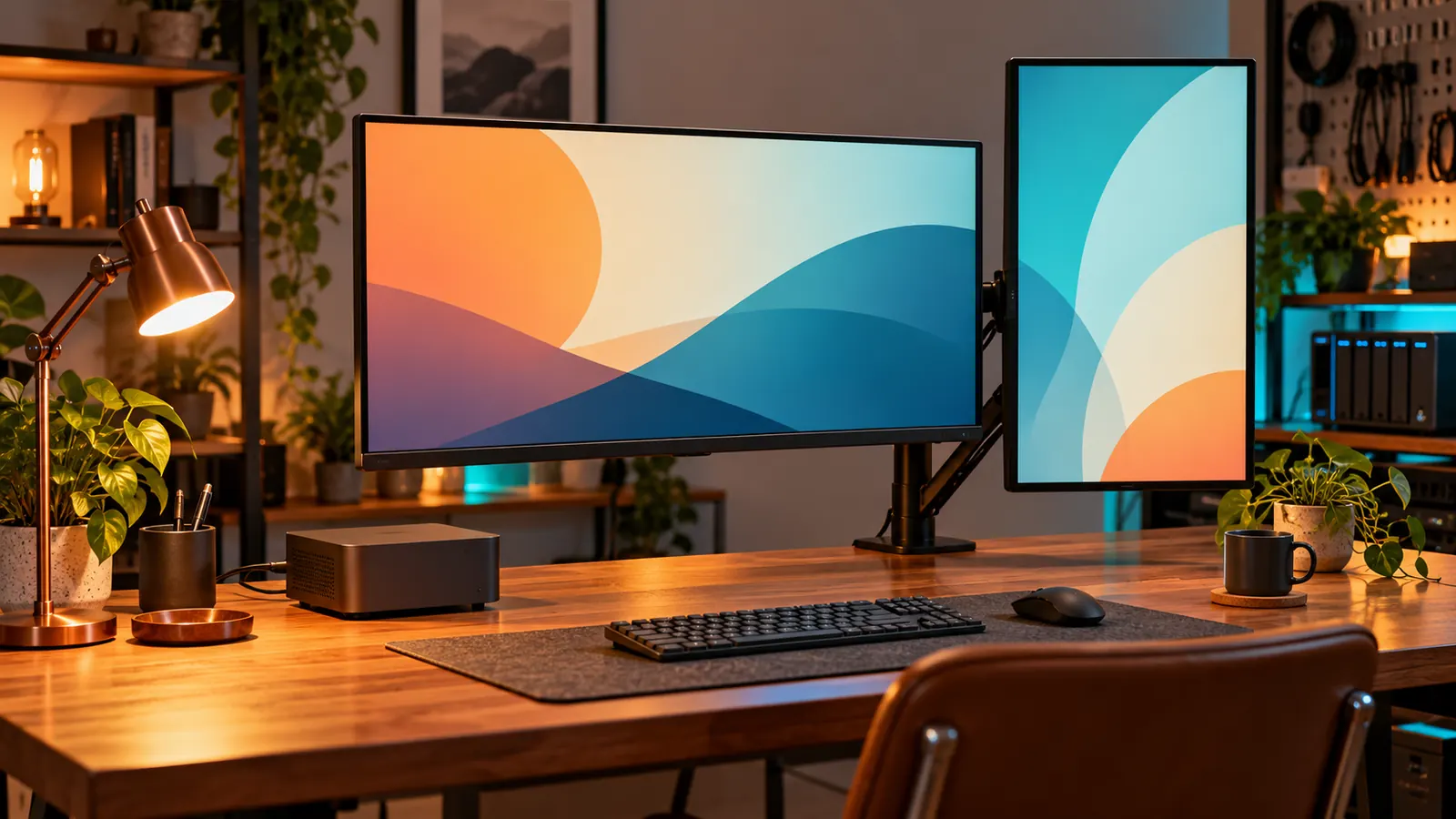
OUR PICKS / YOUR SETUP
Find your fit.
Choose ASUS PA278QV for a QHD main screen, PA279CRV for 4K text and USB-C 96W charging, Dell S3425DW for ultrawide space, or P2425H for a pivoting side screen. Match the input path and stand-free weight to the desk.
- Everyday QHD27″ · 2560 × 1440
- 4K laptop inputUSB-C · up to 96W
- Wide workspace3440 × 1440
We earn a commission if you buy through our links — it doesn’t change our picks. How we make money → As an Amazon Associate I earn from qualifying purchases.
YOUR NEXT PROJECT / THE GEAR
Parts list
- ASUS ProArt PA278QV 27-inch monitorCheck price on Amazon
Give terminals and dashboards a QHD screen with DisplayPort and an adjustable stand.
- ASUS ProArt PA279CRV 27-inch 4K monitorCheck price on Amazon
Keep documentation and terminals crisp, with USB-C video and up to 96W laptop charging.
- Dell S3425DW 34-inch ultrawide monitorCheck price on Amazon
Spread your terminal, documentation and dashboard across one curved ultrawide screen.
- Dell P2425H 23.8-inch monitorCheck price on Amazon
Give logs and reference pages a dedicated screen with a stand that pivots into portrait.
Give each window a home. A terminal beside the docs, a dashboard you can glance at, and logs that stop disappearing behind everything else: that is the screen upgrade worth buying. Start with 27-inch QHD for a straightforward main display, move to 4K for higher pixel density, or go ultrawide when you want more columns on one screen.
Specs come from the makers, checked November 1, 2026; pixel density and scaling examples are computed below.
Four screen jobs, four picks
Best QHD all-rounder: ASUS ProArt PA278QV. Its 27-inch 2560 × 1440 panel, DisplayPort and HDMI inputs make it the simple main-screen pick for a mini PC or desktop. You also get a stand that adjusts in height and pivots.
Best for 4K docs and USB-C laptops: ASUS ProArt PA279CRV. Choose it for denser text rendering and a USB-C input that carries video, USB data and up to 96W of charging.
Best for side-by-side work: Dell S3425DW. The 34-inch 3440 × 1440 ultrawide gives your reference page, terminal and dashboard more horizontal room without a bezel between them. Its USB-C input supplies up to 65W.
Best vertical side screen: Dell P2425H. This 23.8-inch Full HD model has a pivoting stand, native HDMI and DisplayPort inputs, and enough vertical canvas in portrait for a long log or reference page. Keep it as the sidekick rather than buying a second large main display.
Compare the parts that change the purchase
| Screen job / model | Panel and maker maximum refresh | Video inputs | USB-C host charging | VESA / weight without stand | Computed PPI |
|---|---|---|---|---|---|
| QHD: ASUS PA278QV | 27-inch IPS; 2560 × 1440; 75 Hz | DP 1.2, mini DP, HDMI 1.4, dual-link DVI | None | 100 × 100 mm / 4.83 kg | 108.8 |
| 4K: ASUS PA279CRV | 27-inch IPS; 3840 × 2160; 60 Hz | USB-C DP Alt Mode, DP 1.4 input, 2 × HDMI 2.0; separate DP output for daisy chaining | Up to 96W | 100 × 100 mm / 4.07 kg | 163.2 |
| Ultrawide: Dell S3425DW | 34-inch curved VA; 3440 × 1440; 120 Hz | 2 × HDMI 2.1, USB-C DP 1.4 Alt Mode | Up to 65W | 100 × 100 mm / 6.91 kg | 109.7 |
| Portrait: Dell P2425H | 23.8-inch IPS; 1920 × 1080; 100 Hz | HDMI 1.4, DP 1.2, VGA | No USB-C host input; its 15W USB-C port is downstream/data-only | 100 × 100 mm / about 3.12 kg | 92.6 |
Weights are the makers’ stand-free figures; the P2425H value is converted from Dell’s 6.88 lb panel-only specification. Maximum refresh is the screen’s rating—choose the host, cable, dock and KVM for the resolution and refresh you intend to use. ASUS PA278QV specs · ASUS PA279CRV specs · Dell S3425DW specs · Dell P2425H specs
PA278QV: the everyday lab screen
The PA278QV is the one to choose when you want a useful main display without changing how the computers connect. HDMI works with an HDMI mini PC; DisplayPort gives a desktop or compatible dock a direct path. The included stand handles height, swivel and portrait rotation, so an arm is optional. ASUS panel, port and stand specifications
At its native resolution and 100% scaling, you have a 2560 × 1440 workspace. Make it the centre of a compact desk, put the docs beside the terminal, and leave the hardware experimenting to the machines underneath. Our desk setup guide covers the arm, dock and cable management around it.
PA279CRV: sharper text, tidier laptop connection
The PA279CRV puts more pixels into the same diagonal size. At 150% scaling, its calculated workspace is the same 2560 × 1440 as the QHD pick at 100%, with more physical pixels available to draw text. Choose it for that density, not on the assumption that you will read tiny text at unscaled 4K.
Its USB-C input supports DisplayPort Alt Mode and up to 96W Power Delivery. With a compatible video-capable laptop port, that is the clean one-cable route for video, USB peripherals and charging. The two DisplayPort sockets are an input and a daisy-chain output, not two independent host inputs. ASUS USB-C and I/O diagram
S3425DW: spread out sideways
The Dell S3425DW is for the desk where you keep moving the same three windows around. At native resolution, it has 34.4% more horizontal pixels than the QHD pick and the same 1440-pixel height. Use that width for side-by-side work; choose a 4K screen instead if higher pixel density is the goal.
Dell documents two HDMI inputs and a USB-C video input with 65W PD. There is no full-size DisplayPort socket, so an existing DisplayPort KVM needs a compatible conversion path or a different screen choice. Its stand adjusts height and tilt; use the small Dell below for the portrait job. Dell input, stand and resolution specifications
P2425H: turn the reference page upright
The P2425H makes a useful second screen for logs, a runbook or a chat window beside your main work. Rotate the stand and set the OS orientation to portrait: the assumed 100% workspace becomes 1080 × 1920.
Use HDMI or DisplayPort for its picture. The USB-C socket is a 15W downstream data port, so it is not the video-and-charging laptop input found on the PA279CRV and S3425DW. Dell lists a separate USB-B upstream connection for the USB hub. Dell P2425H ports and pivot stand
PPI and scaling: buy usable space
Pixel density is sqrt(width² + height²) ÷ diagonal inches. For the examples below, workspace dimensions are native pixels divided by the assumed scaling factor. The calculation uses the maker diagonals and resolutions, with PPI rounded half-up to one decimal.
| Screen / assumed scale | Calculated workspace equivalent | What to try |
|---|---|---|
| PA278QV / 100% | 2560 × 1440 | A roomy QHD starting point |
| PA278QV / 125% | 2048 × 1152 | Larger text and controls |
| PA279CRV / 150% | 2560 × 1440 | QHD-sized workspace at higher density |
| PA279CRV / 200% | 1920 × 1080 | Bigger controls and fewer windows |
| S3425DW / 100% | 3440 × 1440 | More horizontal working space |
| P2425H portrait / 100% | 1080 × 1920 | A tall reference column |
These are planning examples at assumed scales; choose the text size that is comfortable for you. In Windows, use Settings → System → Display → Scale and keep the panel at its native/recommended resolution. Set Display orientation when you rotate the side screen. Microsoft display scaling and orientation
Match the monitor to the KVM or dock
| What you connect | Sensible input path |
|---|---|
| HDMI mini PCs sharing a screen | An HDMI KVM into any pick’s HDMI input |
| A DisplayPort desktop or DP KVM | Native DP on PA278QV, PA279CRV or P2425H |
| A USB-C laptop with video output | PA279CRV USB-C/96W or S3425DW USB-C/65W; match the laptop’s charging requirement |
| Two computers sharing keyboard and mouse | Choose the switching path in our KVM guide; use the monitor’s inputs for the picture |
A dock connects a laptop to the desk; a KVM selects which computer owns the shared peripherals. Keep keyboard and mouse on the KVM’s shared USB ports when that is the job. Our HDMI, DisplayPort and USB-C KVM picks spell out the host connections and cable counts. For a one-laptop dock layout, follow the desk wiring plan.
Arm fit and the first five minutes
All four screens list 100 × 100 mm VESA mounting. Use the weight without the stand, then account for any mounting accessories. The existing Ergotron LX pick has a published 3.2 kg minimum; the bare P2425H is below it. Keep that screen on its pivoting stand or choose an arm rated for its lighter load. Ergotron LX mounting and load specifications
Connect the main screen directly first. Select its input, set the native resolution and your chosen refresh rate, then adjust scaling. Add the dock or KVM once the direct picture works, and test switching between the computers you will use. Leave enough cable slack for arm movement and portrait rotation.
Choose PA278QV for an uncomplicated QHD main screen, PA279CRV for dense text and USB-C charging, S3425DW for width, or P2425H for the vertical sidekick. Build the rest around it in the homelab desk hub.
Sources & methodology
Where these facts come from.
- ASUS PA278QV ports, panel, pivot and stand-free weight · checked November 1, 2026
- ASUS PA279CRV 4K panel, USB-C 96W and mounting specifications · checked November 1, 2026
- Dell S3425DW inputs, USB-C 65W and stand-free dimensions/weight · checked November 1, 2026
- Dell P2425H FHD panel, pivot, USB data ports and VESA weight · checked November 1, 2026
- Microsoft display scaling, native resolution and orientation · checked November 1, 2026
- Ergotron LX minimum display load and VESA pattern · checked November 1, 2026
- ASUS PA279CRV DisplayPort input versus MST output · checked November 1, 2026
Source dates are listed above.
As an Amazon Associate I earn from qualifying purchases.
YOUR NEXT PROJECT / THE GEAR
Parts list
- ASUS ProArt PA278QV 27-inch monitorCheck price on Amazon
Give terminals and dashboards a QHD screen with DisplayPort and an adjustable stand.
- ASUS ProArt PA279CRV 27-inch 4K monitorCheck price on Amazon
Keep documentation and terminals crisp, with USB-C video and up to 96W laptop charging.
- Dell S3425DW 34-inch ultrawide monitorCheck price on Amazon
Spread your terminal, documentation and dashboard across one curved ultrawide screen.
- Dell P2425H 23.8-inch monitorCheck price on Amazon
Give logs and reference pages a dedicated screen with a stand that pivots into portrait.
Prepared by Racks & Watts.